
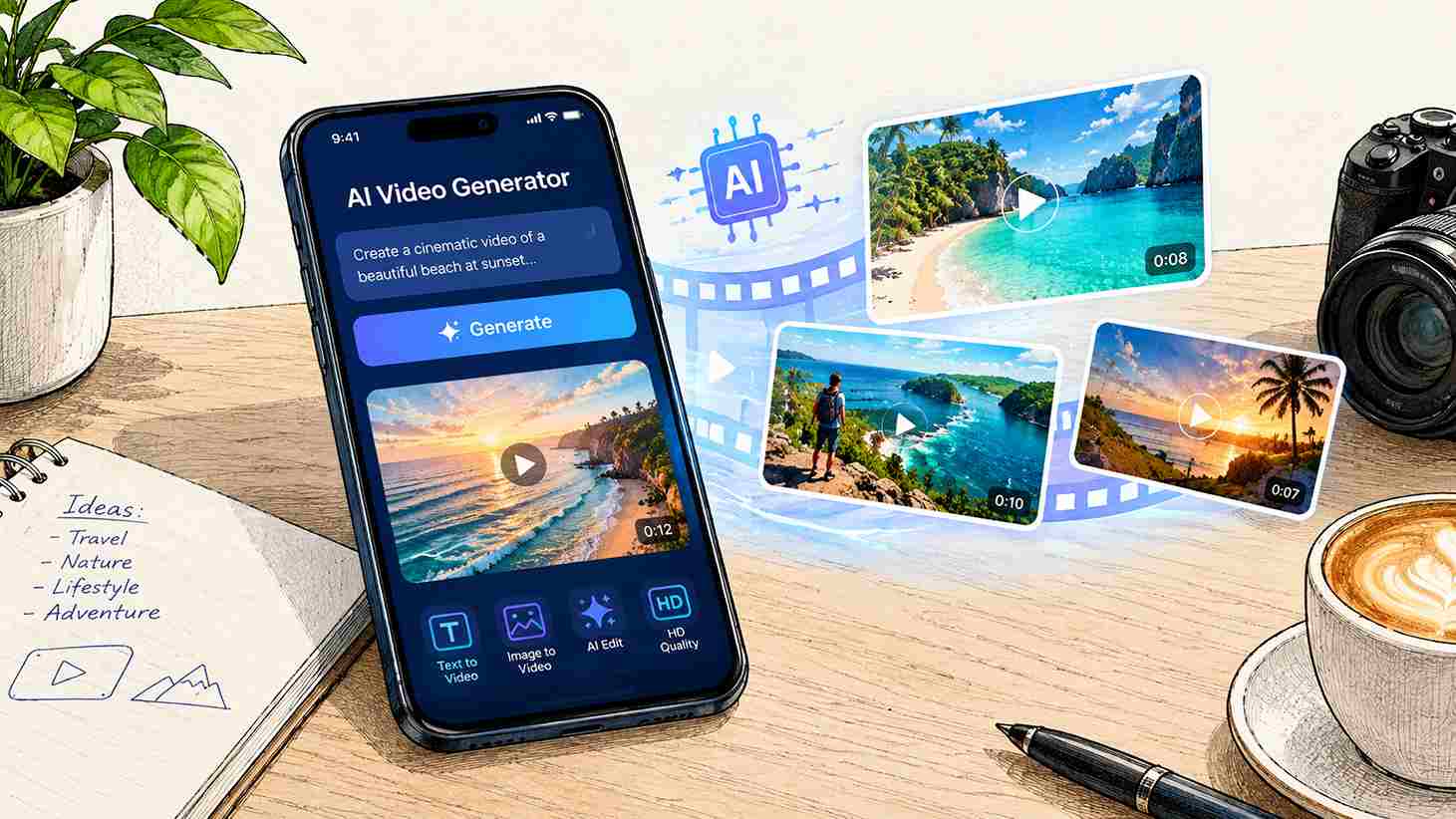
AI Video Generator Phone Previews Need An Export Check
The clip looks clean in its creation preview. After it is sent through a messaging app, the sky breaks into blocks and the small title is difficult to read. Regenerating the scene might change the artwork, but it will not tell you whether the damage happened during generation, saving, editing, or sharing.
Keep one saved file as the reference before judging an AI video tool by a forwarded copy. The preview, the downloaded file, and the message attachment are three different viewing conditions. Compare them in that order so you can locate where the visible problem first appears.
MakeShot’s current image-to-video route includes a Video Format choice showing MP4 and MOV. Available controls depend on the selected route. A format label is useful information to record, but it does not by itself prove that every phone, player, or sharing application will handle the resulting file identically.
Locate The First Version That Shows The Problem
Begin with one approved candidate and a specific symptom. “Looks bad on my phone” is too broad. Does the image have blocky patches, does the movement pause, is the frame cropped, or is the audio missing? Each observation points to a different comparison. Keep the source candidate unchanged while tracing that symptom.
Watch the generation preview again. If the title is already distorted there, a later sharing setting is unlikely to repair its lettering. If the title was added in an external editor, inspect the editor’s export before blaming the generated background. Locate the earliest version containing the fault, then investigate that stage.
Save the original output and play it locally on the intended phone. Use the same visible moment when comparing versions. A fast pan and a still ending can have very different appearances, so comparing different moments may exaggerate or hide the issue. Pause only after watching at normal speed; a single paused frame does not describe the whole playback experience.
For a clip made with MakeShot’s AI Video Generator, note the route and the settings used for that candidate. Keep those notes separate from the published video. They give you a starting point if another output is needed, without implying that the same prompt will reproduce an identical file or that the preview is the final delivery artifact.
Test The Saved File On The Intended Phone
A laptop preview is not a substitute for seeing the file on the device where it will be watched. Start with direct playback of the saved file, before sending it through a social or messaging service. Confirm that the file opens, the full action remains visible, and any required sound plays at an ordinary listening level.
Check the file’s displayed dimensions and duration where the device or player exposes them. These observations can reveal that the wrong version was saved or that an editor exported a different canvas. Do not rely on the filename alone. Two files with the same name can contain different edits, and a familiar extension says little about the actual picture.
If playback stutters, try the same file in another available player on the same device, then on another device if practical. Keep the test bounded: the aim is to find whether the symptom follows the file or a viewing environment. A difference between players is a clue, not proof of a particular codec or hardware fault.
When a file from an AI Video Generator plays cleanly locally, keep it unchanged while testing delivery. Re-exporting repeatedly before identifying the problem creates additional versions and makes the comparison harder. If an editor must create a delivery copy, preserve the original output and record which copy was sent.
Look at small details that matter to the actual use. A decorative gradient may show banding without obscuring the message. A damaged product name or an unreadable subtitle may make the clip unusable. Judge the failure against the purpose of the asset rather than enlarging every minor artifact until it becomes the only thing you can see.
Choose one reference moment and describe it precisely, such as the frame where the sail passes the horizon. Ask the recipient to inspect that same moment at normal viewing size. Comparing the same detail avoids a conversation in which one person is judging smooth motion while the other is judging lettering in a paused frame.
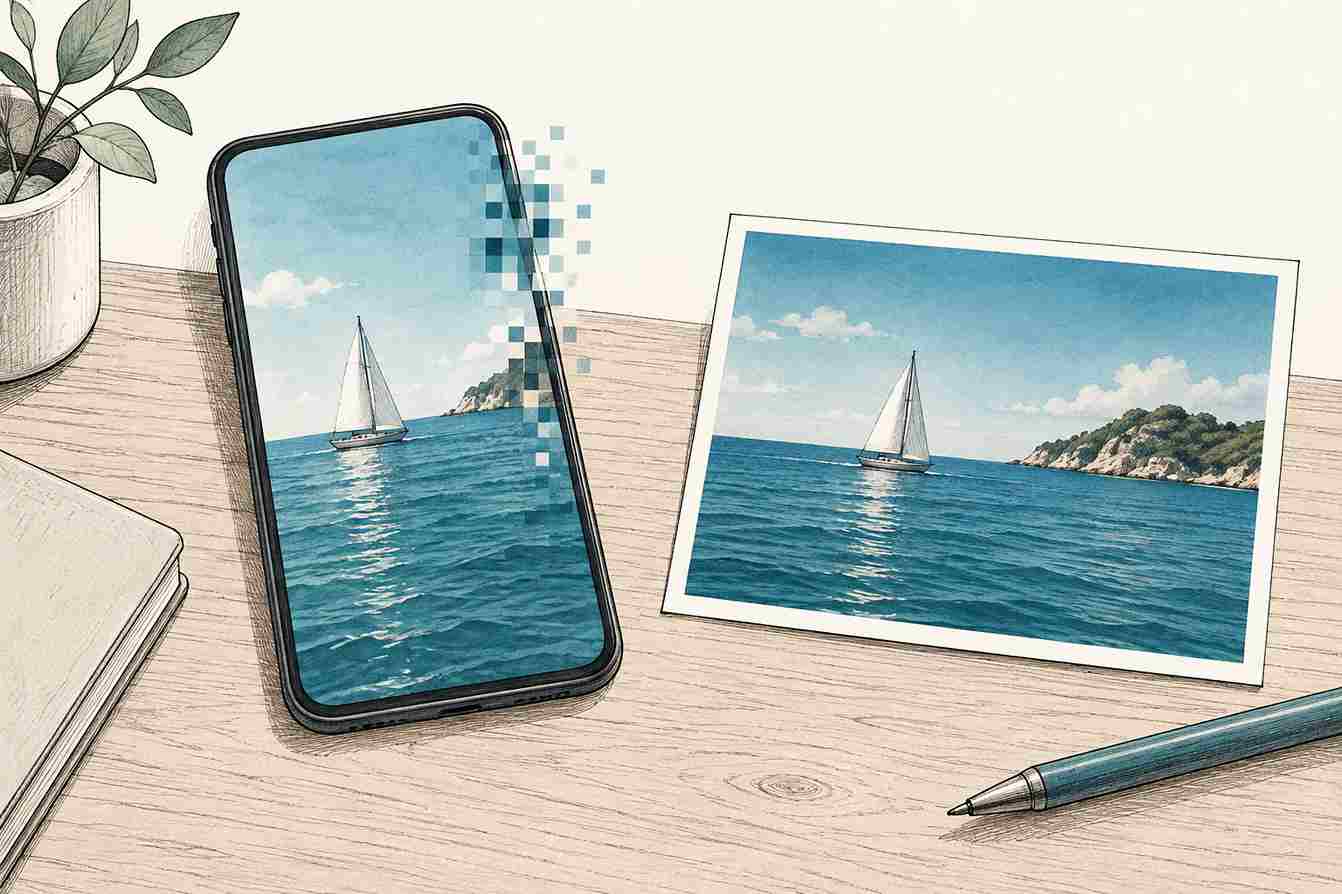
Compare Direct Playback With The Shared Copy
Send the verified file through the intended route and inspect the received copy. Where the app offers different sending methods, test the method the recipient will actually use. Avoid prescribing a universal setting: sharing behavior varies by application, version, and destination. The important evidence is the file and playback that arrive at the other end.
| Comparison | Observation | Next place to inspect |
| Preview versus saved original | Fault first appears in saved file | Saved version, export settings, and local playback |
| Saved original versus edited export | Fault first appears after editing | Timeline and delivery-export settings |
| Local export versus received copy | Fault first appears after sharing | Sending method and received version |
This comparison narrows the search without claiming a diagnosis. A received copy that looks softer may have been processed differently, displayed at a different size, or opened before the intended version finished loading. Compare available file details and repeat the same send once if needed. Do not announce a compression cause solely from appearance.
Separate Picture Damage From Cropping And Silent Playback
A sharing surface can show only part of a frame without changing the source composition. If the subject disappears at the edge, check whether the player is filling its display area with a crop. Compare with a view that shows the whole frame. Regenerating a wider scene would be an expensive way to compensate for a display choice you had not identified.
Audio deserves its own comparison. A silent preview may reflect a muted player rather than a silent file. Conversely, hearing sound in the creation environment does not establish that the delivered version includes the intended track. Listen to the saved original and received copy directly, using a scene where the sound is easy to recognize.
If the original MakeShot output itself fails the required playback check, return to the generation or export stage with the symptom documented. If only the shared copy fails, adjust the delivery method first. This sequence avoids changing an approved visual when the problem lies elsewhere.
Deliver A Verified Master And A Tested Sharing Copy
MakeShot can supply the generated clip, but the final viewing path still needs inspection. This approach suits creators who can retain a source file and test the actual destination. It does not establish universal compatibility across every phone or application from one successful playback.
Keep the verified original and identify the copy intended for sharing. When a recipient reports a problem, ask which version and viewing route they used. A small, reproducible comparison is more useful than starting a new generation before anyone knows where the picture changed.